SDK
Coming soon

Coming soon
Coming soon
Latest version: SIBS plugin v2.3.1 (24/07/2023)
Compatible with:
This page provides a comprehensive guide on how to install, configure, and use SIBS Payments plugin for Magento. The plugin seamlessly integrates with your Magento store, allowing you to securely process payments using your customers’ preferred payment methods.
This type of integration offers several key benefits for businesses looking to streamline their payment processing and improve the overall customer experience:
Before installing the plugin to accept payments, ensure that during the onboarding process, you have received the necessary credentials to your email:
In the next step, we will see how you can get the SIBS WebHook Secret.
To complete the authentication, you will need to configure the WebHook secret at your SIBS Backoffice. But first you will need to get the WebHook URL which will be used to input at the SIBS Backoffice.
After installing, and whenever you need to access your shop authentication configurations or make changes in your shop’s payment options, access the plugin configuration.
1. Go to Stores > Configuration
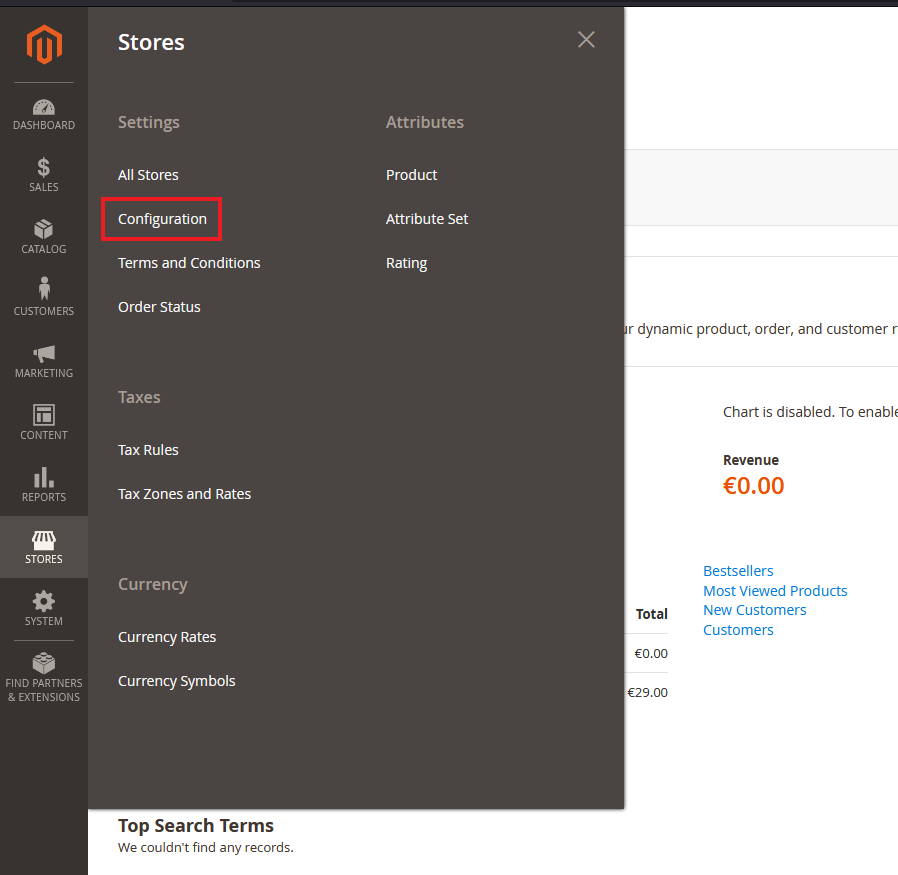
2. Click on the SALES option that appears and then Payment Methods.
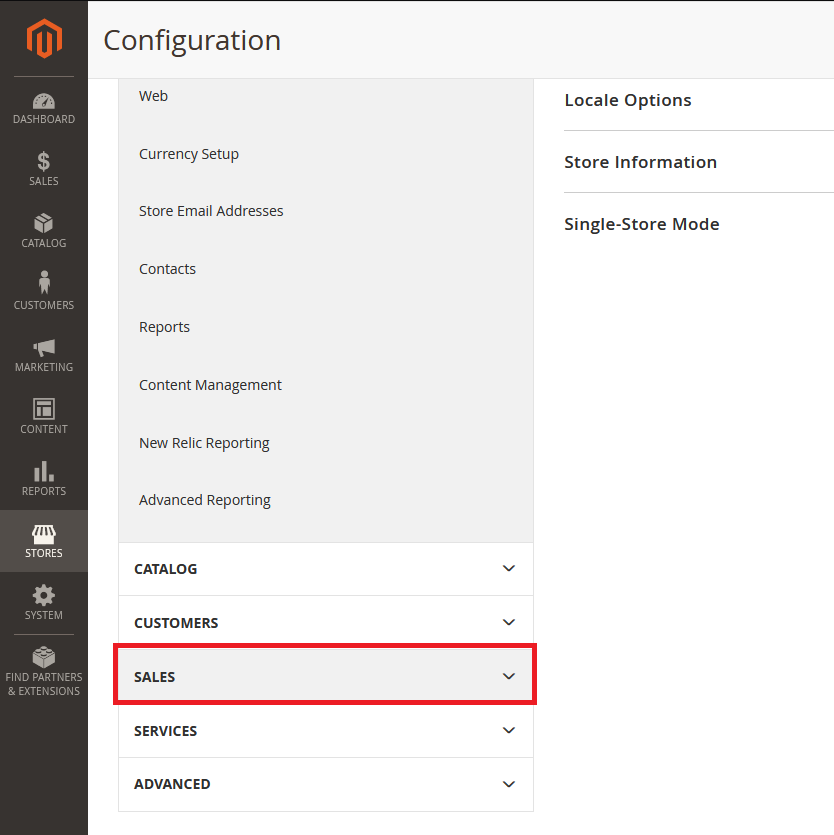
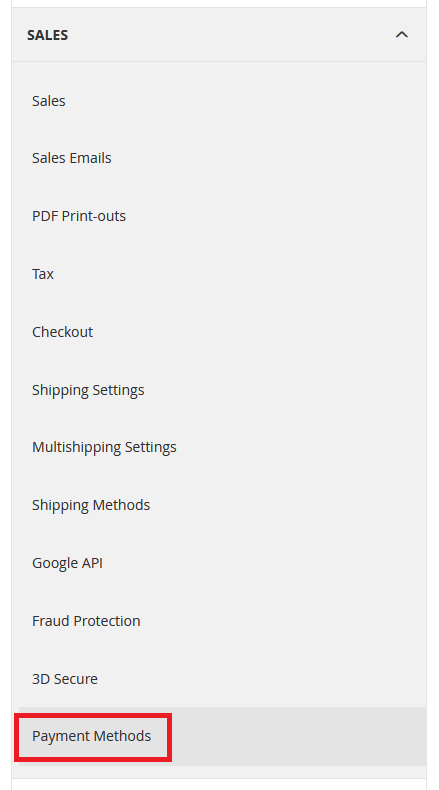
3. You can access the SIBS plugin configuration by clicking Configure in the next panel.
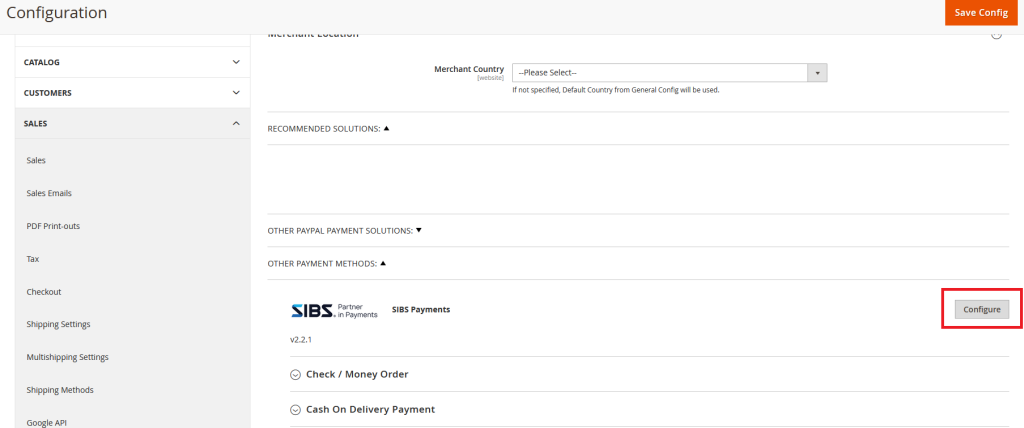
At this step you will input the information you got mentioned at Before you start and the Step 2: Getting WebHook secret from the Install Plugin guide.
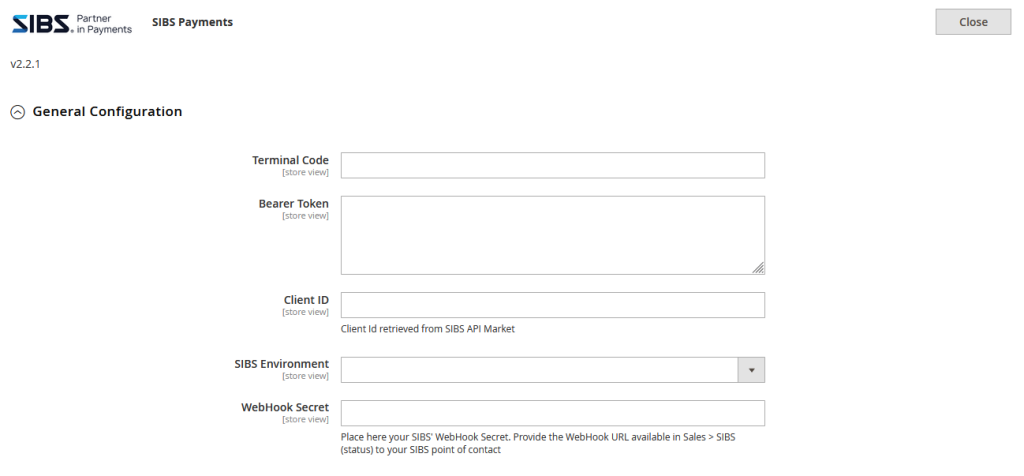
(SIBS Environment will be set to LIVE)
SIBS plugin for Magento supports a range of popular payment methods, including Card (VISA, Mastercard) BLIK (Poland) and PayByLink.
Besides being able to activate or deactivate this payment method, in the SIBS Cards configuration you can select which card types you accept and will be displayed in the checkout page.
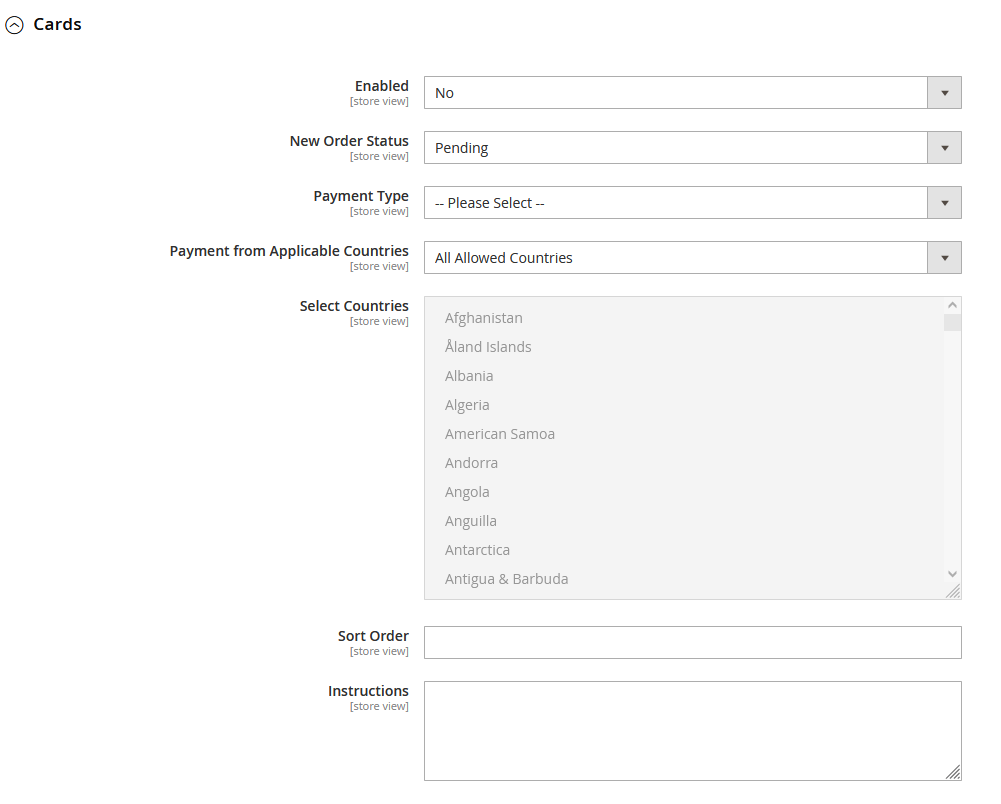
Yes or No – Select if you want to offer this payment method.
The default status when a user places a new order.
Pre-authorisation: The customer authorises the payment but is only charged after the merchant authorises.
Debit: Usual card payment.
Control which countries have access to this payment method at your store.
The numerical order of that payment method. 1 will make Cards be on the first place, 2 in the second and so on.
If you want to add extra information about this payment method.
BLIK is a popular mobile payment method in Poland that allows customers to make payments using their unique six-digit code generated on their mobile device. The code is entered at the point of sale (your eCommerce store) making BLIK a fast, secure, and convenient payment solution.
At the BLIK configuration page you can activate or deactivate the payment method. (Enabled)
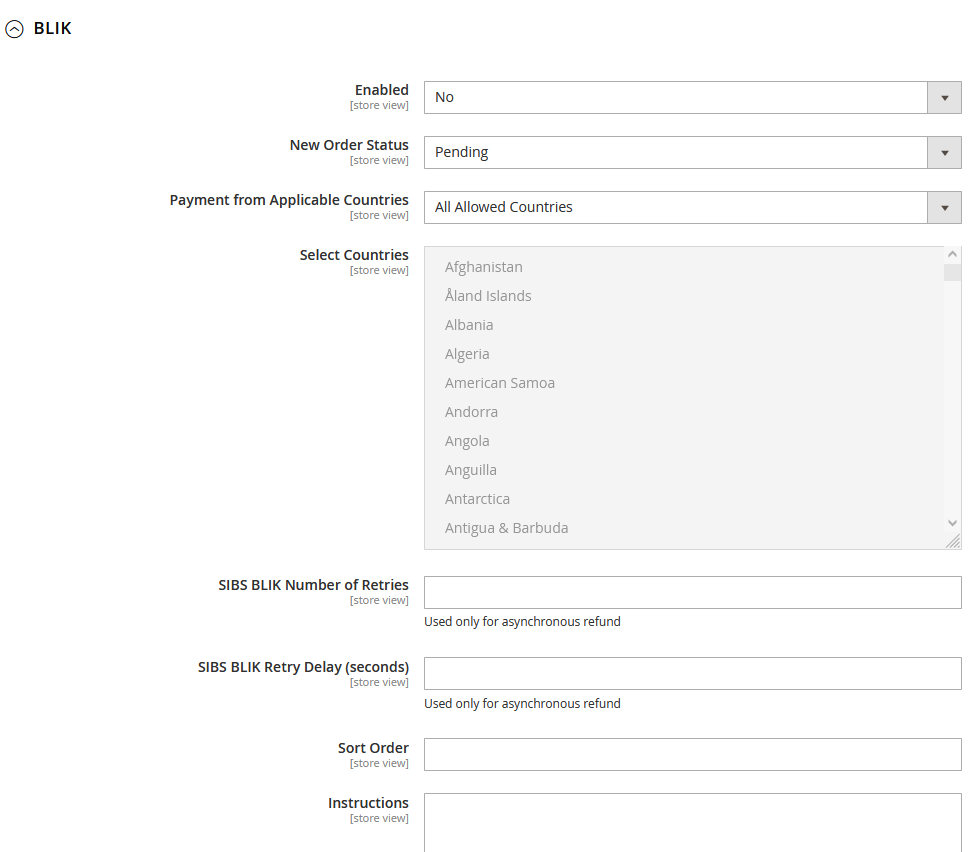
Yes or No – Select if you want to offer this payment method.
The default status when a user places a new order.
Control which countries have access to this payment method at your store.
The numerical order of that payment method. 1 will make Cards be on the first place, 2 in the second and so on.
If you want to add extra information about this payment method.
The remaining fields should be left blank or default.
At the PayByLink configuration page you can activate or deactivate the payment method.
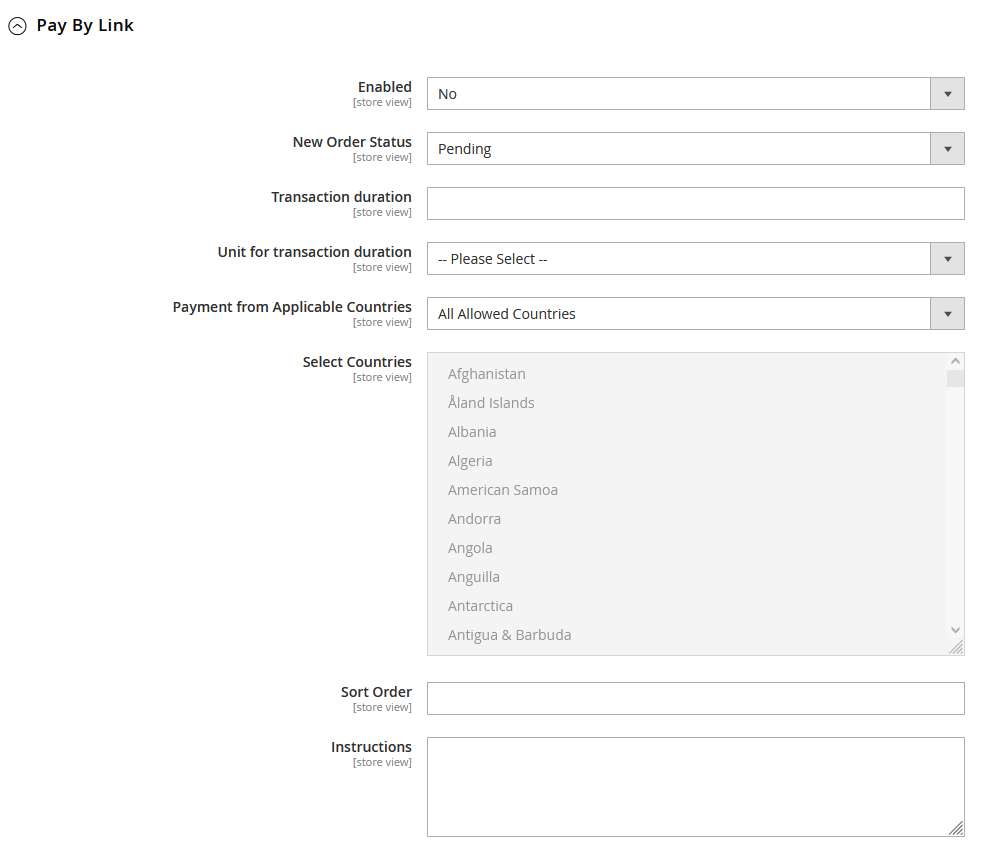
Yes or No – Select if you want to offer this payment method.
The default status when a user places a new order.
Control which countries have access to this payment method at your store.
The numerical order of that payment method. 1 will make Cards be on the first place, 2 in the second and so on.
If you want to add extra information about this payment method.
The remaining fields should be left blank or default.
Latest Version: SIBS Plugin v1.1.6 (19/07/2023)
Compatible with:
This page provides a comprehensive guide on how to install, configure and use SIBS Payments plugin for Prestashop. This plugin seamlessly integrates with your Prestashop store, allowing you to securely process payments using your customers’ preferred payment methods.
This type of integration offers several key benefits for business looking to streamline their payment processing and improve the overall customer experience:
Before installing the plugin to accept payments, ensure that during the onboarding process, you have received the necessary credentials to your email:
Once you have these, you will be able to easily install the plugin on your platform.
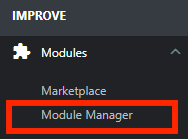


After installing, and whenever you need to make changes in your shop’s payment options, you can always access the plugin configuration going to the Modules section at the sidebar menu and go to Module Manager.

After scrolling to the payment modules section, you can find SIBS plugin. Press Configure to access the configuration page.

After scrolling to the payment modules section, you can find SIBS plugin. Press Configure to access the configuration page.

Our Prestashop payment gateway plugin supports a range of popular payment methods, including Card (VISA, MasterCard), BLIK (Poland), and PayByLink. These payment methods offer secure and convenient ways for customers to make purchases online. With our plugin, you can easily configure payment settings to accept these payment methods.
Below the General Settings window you can find the configurations for each of our payment methods.
Besides being able to activate or deactivate this payment method, in the Credit Card configuration you can select which card types you accept and will be displayed in the checkout page.

Pre-Authorisation – The customer authorises the payment but is only charged after the merchant authorises.
Debit – Usual card payment.
It’s a process of data security that replaces sensitive information, such as credit card numbers, with unique tokens (a sequence of random alphabet characters and numbers). These tokens are randomly generated and used in place of the original data, which is then stored securely in a separate location. Tokenization helps to protect sensitive data from theft or fraud by ensuring that the original information is never exposed or transmitted. Additionally, it can also simplify payment processing by allowing merchants to safely store payment information without compromising customer privacy.
Here you can deactivate tokenization selecting None. This means that no one can reuse their card number for future purchases.
The Tokenize option allows your customer to tokenize (‘securely save’) their card number for future operations, but not their Security Code.
With OneClick activated you can allow your users a much faster checkout by tokenizing (‘securely save’) their card number and security code. After your customers agree to the terms, and make their first purchase, they will be allowed to just click in the previously saved card, without losing time looking for their card details. All the data is securely stored and encrypted, following the standard compliances.
Please make sure that the user must be logged into the store to be able to save card details.
Sort Order: A numerical value assigning the position this payment method will occupy in relation to others. Ex. ‘1’ will mean this method will be the first, ‘2’ the second, etc.
Activate or deactivate BLIK and assign the position that this method will appear in the checkout page. Ex. ‘1’ will mean this method will be the first, ‘2’ the second, etc.

Activate or deactivate PayByLink and assign the position that this method will appear in the checkout page. Ex. ‘1’ will mean this method will be the first, ‘2’ the second, etc.

Latest version: SIBS Plugin v2.5.0 (19/07/2023)
Compatible with:
This page provides a comprehensive guide on how to install, configure, and use SIBS Payments plugin for WooCommerce. The plugin seamlessly integrates with your WooCommerce store, allowing you to securely process payments using your customers’ preferred payment methods.
This type of integration offers several key benefits for businesses looking to streamline their payment processing and improve the overall customer experience:
Before installing the plugin to accept payments, ensure that during the onboarding process, you have received the necessary credentials to your email:
In the next step, we will see how you can get the SIBS Webhook Secret.

After installing, and whenever you need to make changes in your shop’s payment options, access the plugin configuration.

SIBS plugin for WooCommerce supports a range of popular payment methods, including cards (VISA, Mastercard), BLIK (Poland), and PayByLink.
Besides being able to activate or de-activate this payment method, in the SIBS Cards configuration you can select which card types you accept and will be displayed in the checkout page:

Pre-authorization – The customer authorizes the payment but is only charged after the merchant authorizes.
Debit – Usual card payment.
Tokenization helps to protect sensitive data from theft or fraud by ensuring that the original information is never exposed or transmitted. Additionally, it can also simplify payment processing by allowing merchants to safely store payment information without compromising customer privacy.
Here you can deactivate tokenization selecting None. This means that no one can reuse their card number for future purchases.
The Tokenize option allows your customer to tokenize (‘securely save’) their card number for future operations, but not their Security Code.
With OneClick activated you can allow your users a much faster checkout by tokenizing (‘securely save’) their card number and security code. After your customers agree to the terms, and make their first purchase, they will be allowed to just click in the previously saved card, without losing time looking for their card details. All the data is securely stored and encrypted, following the standard compliances.
BLIK is a popular mobile payment method in Poland that allows customers to make payments using their unique six-digit code generated on their mobile device. The code is entered at the point of sale (your ecommerce store) making BLIK a fast, secure and convenient payment solution.
At the BLIK configuration page you can activate or deactivate the payment method.
At the PayByLink configuration page you can activate or deactivate the payment method.
Our Plugins are fully PCI compliance solutions.
This page provides an overview of the available customization options that allow you to modify and personalize the Payment Form, empowering you to enhance your customers’ experience.
The Payment Form is a payment service of utmost importance and demands the latest security measures. As a result, we endorse all major web browsers that are still receiving official security updates and are actively maintained, such as:
Adjust the page colors and font to your desired specifications to align with your brand scheme.
To achieve this, you should incorporate the {formStyle} when creating the payment form.
formStyle -> spg-style=”{formStyle}”
"transaction": {
 "layout": 'default',
 "theme": 'default',

 "color": {
 "primary": "",
 "secondary": "",
 "border": "",
 "surface": "",
 "header": {
 "text": "",
 "background": ""
 },

 "body": {
 "text": "",
 "background": ""
 }
 },
 "font": ""
}
The attribute attr.spg-style is a JSON string, optional allowing you to customize the payment form:
| Parameter | Type | Possible values (examples) | Default | Description |
|---|---|---|---|---|
| layout | String | ‘default’, ‘accordion’, ‘list’ | ‘default’ | Form layout. |
| theme | String | ‘default’, ‘light’, ‘dark’, ‘grey’ | ‘default’ | Form theme. |
| color.primary | String | ‘#ff0000’ | – | Primary color in hexadecimal. |
| color.secondary | String | ‘#ff0000’ | – | Secondary color in hexadecimal. |
| color.border | String | ‘#ff0000’ | – | Border color in hexadecimal. |
| color.surface | String | ‘#ff0000’ | – | Surface color in hexadecimal – surface is the ‘main background’ of the html page. |
| color.header.text | String | ‘#ff0000’ | – | Card Header Text Color in Hexadecimal. |
| color.header.background | String | ‘#ff0000’ | – | Card Header Color in Hexadecimal. |
| color.body.text | String | ‘#ff0000’ | – | Color in Hexadecimal of the Text in the Background. |
| color.body.background | String | ‘#ff0000’ | – | Background Color in Hexadecimal – the background color used for payment cards. |
| font | String | ‘Times New Roman’ | – | Font Family used. |
You can find below a visual example of different colors being applied to the payment form.
To take customization to the next level and ensure perfect alignment with your brand’s design, the full customization option offers numerous advantages.
Follow the instructions below to implement the Payment Form and start accepting payments seamlessly.
This step describes how to create an order once your shopper is ready to pay.
The available endpoint destination URL:
| Environment | URL | Operation method & Endpoint | Operation description |
|---|---|---|---|
| PROD | api.sibsgateway.com | api/version-id/payments | Performs a request to prepare the checkout required data an returns with the Payment Form. |
| TEST | stargate-cer.qly.site[1|2].sibs.pt | api/version-id/payments | Performs a request to prepare the checkout required data and returns with the Payment Form. |
Regarding the required data to create the order, the process is simple, and it requires only a few actions:
Check below the full description of the required data to start creating your order.
numeric [<=10 characters]
Object that defines the predefined customer information.
Now, it is time to include your transaction information based on the payment methods you want to render in your paywall.
In this step, we show you that there is plenty of optional information that you add to complete your order creation. Please check below the additional information based on some use cases:
Payment authorisation with 3D Secure authentication (frictionless or challenged).
Save a shopper’s details and make recurring and subscription payments.
Activate the most seamless and quick way to accept payments.
Keep your system up-to date on payment events and status changes.
Here is an example of how to create an order.
{
 "merchant": {
 "terminalId": 24,
 "channel": "web",
 "merchantTransactionId": "Order Id: 5hraff455o",
 "transactionDescription": "transaction short description",
 "shopURL": "https://mytest.e-shop.pl/"
 },
 "transaction": {
 "transactionTimestamp": "2023-05-16T10:33:43.587Z",
 "description": "transaction statement description",
 "moto": false,
 "paymentType": "PURS",
 "amount": {
 "value": 50.5,
 "currency": "PLN"
 },
 "paymentMethod": [
 "CARD",
 "BLIK",
 "PBLKV"
 ]
 }
}To create the payment form you just need to add the following lines of HTML/Javascript to your page and populate the following variables that you got in response from the first step:
<script src="https://stargate-cer.qly.site1.sibs.pt/assets/js/widget.js?id={transactionID}"></script>The formContext that you get in response from the first step and a formConfig:
<form class="paymentSPG" spg-context="{formContext}" spg-config="{formConfig}"></form>The formConfig is necessary for you to be able to create the form correctly.
{
 "paymentMethodList": [],
 "amount": {
 "value": 50.50,
 "currency": "PLN"
 },
 "language": "en",
 "redirectUrl": ""
}
The attribute attr.spg-config is a JSON in a string format with the follow parameters:
| Parameter | Type | Available values | Description |
|---|---|---|---|
| paymentMethodList | String | ‘CARD’ ‘TOKEN’ ‘BLIK’ ‘PBLKV’ ‘XPAY’ | Payment methods to show on the form. Only Payment Methods enabled on your account can be used. |
| amount | { value: number, currency: string } | – | Transaction amount value. |
| language | String | ‘pt’ ‘en’ ‘pl’ | Form language (ISO 639-1 Format). |
| redirectUrl | String | – | URL where the user should be redirected at the end of the checkout. |
You also have the option to add a formStyle to personalize your payment form. For more in-depth information, please go to Customized Form.
After the payment has been processed, a page displaying the transaction status is presented, and the customer is then redirected to the redirectUrl defined.
You can find the default look and feel of the Payment Form below, where the customers can seamlessly enter their payment details and complete the transaction:
You can check the status of your transaction making a GET request.
GET {transactionID}/statushttps://stargate-cer.qly.site1.sibs.pt/api/v1/payments/{transactionID}/statusAuthorization: ‘Bearer <AuthToken>’
X-IBM-Client-Id: ‘<ClientId>
Content-Type: application/json
Our Payment Form solution provides a secure and PCI-compliant way for merchants to accept payments on their website. Customers enter their payment information directly into our payment form, and we handle the payment processing.
Payment Form Integration is the best for merchants who:
By using Payment Form Integration, you can enjoy the following benefits:
Here’s how Payment Form works:
To get started with Payment Form, make sure to follow the necessary steps outlined in our integration guide and have your API and client keys ready.
Ensure that during the onboarding process your Account Manager shared with you the necessary credentials:
Once you have these, you will be able to integrate the payment form.
Use our APIs to receive payments and create your own payment form to gain complete control over the appearance and user experience of your checkout page. Follow the instructions below to start accepting payments.
This step describes how to create an order once your shopper is ready to pay.
The available endpoint destination URL:
| Environment | URL | Operation Method & Endpoint | Operation Description |
| PROD | api.sibsgateway.com | POST api/version-id/payments | Performs a request to prepare the checkout required data and returns with the Payment Form. |
| TEST | stargate-cer.qly.site[1|2].sibs.pt | POST api/version-id/payments | Performs a request to prepare the checkout required data and returns with the Payment Form. |
Regarding the required data to create the order, the process requires only a few actions:
Check below the full description of the required data to start creating your order.
numeric [<=10 characters]
Object that defines the predefined customer information.
Now it is time to include your transaction information based on the payment methods you want to render in your paywall.
In this step, we show you that there is plenty of optional information that you add to complete your order creation. Please check below the additional information based on some use cases:
Payment authorisation with 3D Secure authentication (frictionless or challenged).
Save a shopper’s details and make recurring and subscription payments.
Activate the most seamless and quick way to accept payments.
Keep your system up to date on payment events and status changes.
Here is an example of how to create an order:
{
 "merchant": {
 "terminalId": 24,
 "channel": "web","merchantTransactionId": "Order Id: 9bzraklk4v",
 "transactionDescription": "transaction short description",
 "shopURL": "https://mytest.e-shop.pl/"
 },
 "transaction": {
 "transactionTimestamp": "2023-05-15T20:11:11.488Z",
 "description": "transaction statement description",
 "moto": false,
 "paymentType": "PURS",
 "amount": {
 "value": 50.5,
 "currency": "PLN"
 },
 "paymentMethod": [
 "CARD",
 "BLIK",
 "PBLKV"
 ]
 }
}The response includes a statusMsg, a transactionID, a transactionSignature and the list of available paymentMethodList that you can display.
{
 "returnStatus": {
 "statusCode": "000",
 "statusMsg": "Success",
 "statusDescription": "string"
 },
 "transactionID": "42f59038f3f14e618d091da8bf3b717e9999",
 "transactionSignature": "42f59038f3f14e618d091da8bf3b717e9999",
 "amount": {
 "value": 50.50,
 "currency": "PLN"
 },
 "merchant": {
 "terminalId": 47215,
 "channel": "web",
 "merchantTransactionId": "5351136",
 "transactionDescription": "string",
 "shopURL": "string",
 "websiteAddress": "string"
 },
 "paymentMethodList": "",
 "tokenList": []
}
The response contains a statusMsg that can assume different values:
| Result code | statusMsg | Description | Action |
|---|---|---|---|
| HTTP-200 | Success | Success response | n/a |
| HTTP-400 | Bad Request | The JSON payload is not matching the API definition or some mandatory HTTP headers are missing. | Please check in API Market for the correct syntax. |
| HTTP-401 | Unauthorized | On the Authorization, Bearer token is invalid/expired or not associated with the Terminal used. | Please check in SIBS Backoffice under the Credentials if the token is valid and create a new one if needed. |
| HTTP-403 | Forbidden | The ClientID set on the X-IBM-Client-Id HTTP header is not valid or does not possess a valid subscription to the API. | Please check in SIBS Backoffice under the SPG APP 2.0 if the ClientID is correct. If the problem persists contact SIBS Gateway support for a ClientID reset. |
| HTTP-405 | Method Not Allowed | The HTTP Method used is not matching any of the API definitions available. | Please check in API Market for the correct HTTP Method. |
| HTTP-429 | Too Many Requests | The API calls rate limit has been exceeded. | Please check in API Market for information on the rate limits that apply to the API. |
| HTTP-500 | Internal Server Error | The API call has failed… and its most likely on our side. | You should retry the operation, and if the problem persists contact SIBS Gateway support for assistance. |
| HTTP-503 | Service Unavailable | The API call is not currently available. Usually we are always on, but short availability issues may occur during scheduled maintenance. | You should wait and try again later. |
After you create and submit the order with the shopper’s payment details, and he chooses to pay with a payment method that requires a redirection, you need to make a payment request to SIBS Gateway.
Check the instruction on how to make payment with each type of payment method:







