The Merchant can receive notifications by email or endpoint (notification assembling to the status inquiry – Checkout Status), however, only a notification will be sent for each transaction.
Notifications are sent by endpoint straight to the URL provided by the Merchant. The parameterization of this endpoint needs to be done on the SIBS Gateway Backoffice.
For email notifications, only one notification will be sent per transaction.
For URL notifications not accomplished, retries will be attempted. Each time SIBS Gateway receives a transaction, a notification will be sent with the transaction status in real time.
Every day SIBS Gateway sends a summarized email with the newest failed notifications (email needs to be registered on the Backoffice).
There is no guarantee on message order, especially if the time difference between the notifications is smaller than the time it takes to process them or by any communication or systems issues. Once the issues are sort out, new notifications will arrive in real time and old notifications will be resent. In case no notification is received, the option “Checkout Status” should be used before rejecting any transaction.
Notification MULTIBANCO – Asynchronous: Make request – Need action – Get response
It is possible to receive the transaction statuses below:
IN PROCESSING – meaning that the transaction initiated is now in processing.
PARTIAL – it is pending to receive information.
SUCCESS – informing transaction OK, the transaction was executed with success.
DECLINED – indicating that the transaction was declined by an operation intervenient.
TIMEOUT – informing a potential communication error.
ERROR – indicating that the transaction was declined by external system.
After the transaction is in processing, it will only retrieve the “partial” status if some action is pending to be taken. After that it will send the transaction status.
Notifications (Merchant Notifications)
The Merchant can receive notifications by email or endpoint (notification assembling to the status inquiry – Checkout Status), however, only a notification will be sent for each transaction. Notifications are sent by endpoint straight to the URL provided by the Merchant. The parameterization of this endpoint needs to be done on the SIBS Gateway Backoffice. For email notifications, only one notification will be sent per transaction. For URL notifications not accomplished, retries will be attempted. Each time SIBS Gateway receives a transaction, a notification will be sent with the transaction status in real time.
Every day SIBS Gateway sends a summarized email with the newest failed notifications (email needs to be registered on the Backoffice).
There is no guarantee on message order, especially if the time difference between the notifications is smaller than the time it takes to process them or by any communication or systems issues. Once the issues are sort out, new notifications will arrive in real time and old notifications will be resent. In case no notification is received, the option “Checkout Status” should be used before rejecting any transaction.
There are two types of notifications, the Synchronous and the Asynchronous:
Asynchronous
Make request – Need action – Get response → MULTIBANCO
Wrong parameterization in the amount, expiration date, token, Merchant code or terminal code.
Please try again later.
Merchant
Checkout and payment received data for reference generation is incomplete, has to send (Amount and Expiration date).
12.110.1202
Wrong parameterization. Missing data.
Please try again later.
Merchant
Evaluate if the message is correctly formatted (Check if it is parameterizing correctly) according to the SLA.
12.110.1203
SIBS Internal error. Please try again later.
Service not available. Please try again later.
SIBS
Try again later.
12.110.1204
SIBS Internal error. Please try again later.
Service not available. Please try again later.
SIBS
Try again later.
12.110.1205
SIBS Internal error. Please try again later.
Service not available. Please try again later.
SIBS
Try again later.
12.110.1206
SIBS Internal error. Please try again later.
Service not available. Please try again later.
SIBS
Try again later.
Payment request
Error code
Message to the Merchant
Message to the Client
Owner
What to do?
12.110.1301
Wrong parameterization. Missing data.
Service not available. Please try again later.
Merchant
Please check parameterization on the checkout, its needed to invoke the form script to send the signature (Form context). Please verify if the amount, expiration date, token, Merchant code or terminal code are being sent correctly.
12.110.1302
Wrong parameterization. Missing data.
Service not available. Please try again later.
Merchant
Evaluate if the message is correctly formatted and no data is missing (Check it it is parameterizing correctly) according to the SLA.
12.110.1303
SIBS Internal error. Please try again later.
Service not available. Please try again later.
SIBS
Try again later.
12.110.1304
Wrong parameterization. Missing data.
Service not available. Please try again later.
Merchant
Evaluate if the message is correctly formatted and no data is missing (Check it it is parameterizing correctly) according to the SLA.
12.110.1305
Wrong parameterization in payment type (Authorisation, Purchase, Capture or Refund).
Service not available. Please try again later.
Merchant
Evaluate if the message is correctly formatted and no data is missing (Check it it is parameterizing correctly) according to the SLA.
12.110.1306
Wrong parameterization in payment method (Card, MB WAY, or Reference)
Service not available. Please try again later.
Merchant
Evaluate if the message is correctly formatted and no data is missing (Check it it is parameterizing correctly) according to the SLA.
12.110.1307
Wrong parameterization in amount, expiration date, token, Merchant code or terminal code.
Service not available. Please try again later.
Merchant
Evaluate if the message is correctly formatted and no data is missing (Check it it is parameterizing correctly) according to the SLA.
12.110.1308
Wrong amount.
Service not available. Please try again later.
Merchant
Evaluate if the message is correctly formatted and no data is missing (Check it it is parameterizing correctly) according to the SLA.
12.110.1309
Wrong currency.
Service not available. Please try again later.
Merchant
Evaluate if the message is correctly formatted and no data is missing (Check it it is parameterizing correctly) according to the SLA.
12.110.1310
Transaction already finalized.
Service not available. Please try again later.
Merchant
Need to input a valid transaction Id that it is not finalized.
12.110.1311
SIBS Internal error. Please try again later.
Service not available. Please try again later.
SIBS
Try again later.
12.110.1312
SIBS Internal error. Please try again later.
Service not available. Please try again later.
SIBS
Try again later.
12.110.1313
SIBS Internal error. Please try again later.
Service not available. Please try again later.
SIBS
Payment does not fail, only tokenisation fails. No action.
12.110.1314
SIBS Internal error. Please try again later.
Service not available. Please try again later.
SIBS
Try again later.
12.110.1315
SIBS Internal error. Please try again later.
Service not available. Please try again later.
SIBS
Try again later.
12.110.1316
SIBS Internal error. Please try again later.
Service not available. Please try again later.
SIBS
Try again later.
12.110.1317
SIBS Internal error. Please try again later.
Service not available. Please try again later.
SIBS
Try again later.
12.110.1318
SIBS Internal error. Please try again later.
Service not available. Please try again later.
SIBS
Try again later.
12.110.1319
Declined.
Declined
SIBS
Try again later.
12.110.1320
SIBS Internal error. Please try again later.
Service not available. Please try again later.
SIBS
Try again later.
12.110.1321
SIBS Internal error. Please try again later.
Service not available. Please try again later.
SIBS
Try again later.
12.110.1322
SIBS Internal error. Please try again later
Service not available. Please try again later.
SIBS
Try again later.
12.110.1323
SIBS Internal error. Please try again later.
Service not available. Please try again later.
SIBS
Try again later.
12.110.1324
SIBS Internal error. Please try again later.
Service not available. Please try again later.
SIBS
Try again later.
Transaction status inquiry
Error code
Message to the Merchant
Message to the Client
Owner
What to do?
12.110.1401
SIBS Internal error. Please try again later.
Service not available. Please try again later.
SIBS
Try again later.
12.110.1402
SIBS Internal error. Please try again later.
Service not available. Please try again later.
SIBS
Try again later.
12.110.1403
SIBS Internal error. Please try again later.
Service not available. Please try again later.
SIBS
Try again later.
12.110.1404
SIBS Internal error. Please try again later.
Service not available. Please try again later.
SIBS
Try again later.
12.110.1405
SIBS Internal error. Please try again later.
Service not available. Please try again later.
SIBS
Try again later.
12.110.1406
SIBS Internal error. Please try again later.
Service not available. Please try again later.
SIBS
Try again later.
12.110.1407
SIBS Internal error. Please try again later.
Service not available. Please try again later.
SIBS
Try again later.
12.110.1408
SIBS Internal error. Please try again later.
Service not available. Please try again later.
SIBS
Try again later.
12.110.1409
SIBS Internal error. Please try again later.
Service not available. Please try again later.
SIBS
Try again later.
12.110.1410
SIBS Internal error. Please try again later.
Service not available. Please try again later.
SIBS
Try again later.
12.110.1411
SIBS Internal error. Please try again later.
Service not available. Please try again later.
SIBS
Try again later.
12.110.1412
SIBS Internal error. Please try again later.
Service not available. Please try again later.
SIBS
Try again later.
Backoffice
Error code
Message to the Merchant
Message to the Client
Owner
What to do?
12.110.1901
Wrong parameterization in the amount, expiration date, token, Merchant code or terminal code.
Please try again later.
Merchant
Checkout and payment received data for reference generation is incomplete, has to send (Amount and Expiration date).
12.110.1902
Wrong parameterizaton. Missing data.
Please try again later.
Merchant
Evaluate if the message is correctly formatted (Check if it is parameterizing correctly) according to the SLA.
12.110.1903
SIBS Internal error. Please try again later.
Service not available. Please try again later.
SIBS
Try again later.
12.110.1904
SIBS Internal error. Please try again later.
Service not available. Please try again later.
SIBS
Try again later.
12.110.1905
SIBS Internal error. Please try again later.
Service not available. Please try again later.
SIBS
Try again later.
12.110.1906
SIBS Internal error. Please try again later.
Service not available. Please try again later.
SIBS
Try again later.
12.110.1907
SIBS Internal error. Please try again later.
Service not available. Please try again later.
SIBS
Try again later.
12.110.1908
SIBS Internal error. Please try again later.
Service not available. Please try again later.
SIBS
Try again later.
12.110.1909
SIBS Internal error. Please try again later.
Service not available. Please try again later.
SIBS
Try again later.
12.110.1910
SIBS Internal error. Please try again later.
Service not available. Please try again later.
SIBS
Try again later.
12.110.1911
SIBS Internal error. Please try again later.
Service not available. Please try again later.
SIBS
Try again later. Doing a Checkout Status.
12.110.1912
SIBS Internal error. Please try again later.
Service not available. Please try again later.
SIBS
Try again later.
12.110.1913
SIBS Internal error. Please try again later.
Service not available. Please try again later.
SIBS
Try again later.
12.110.1914
SIBS Internal error. Please try again later.
Service not available. Please try again later.
SIBS
Try again later. Doing a Checkout Status.
12.110.1915
SIBS Internal error. Please try again later.
Service not available. Please try again later.
SIBS
Try again later.
12.110.1916
SIBS Internal error. Please try again later.
Service not available. Please try again later.
SIBS
Try again later.
Multibanco
Error code
Message to the Merchant
Message to the Client
Owner
What to do?
10.107.000 1
Invalid payment entity.
Entity not valid. Please try again later.
Merchant
Please verify that the correct Merchant entity is being used.
* If “Bearer” is part of a header, then it will not have limitations in terms of field size. If the field isn’t part of a header, the size must be maximum 1024 Text.
** If “clientId” is part of a header, then it will not have limitations in terms of field size. If the field isn’t part of a header, the size must be maximum 36 Text.
Table info
(1) Merchant: parameterisation defined by the agreement between SIBS and the Merchant;
(2) Transaction: parameterization related to the transaction, “moto” is in the case of being a transition “Mail Order Telephone Order”. The paymentType is ‘AUTH’ or ‘PURS’;
(3) MerchantInitiatedTransaction: optional parameterization to create a transaction with Initial Cardholder Initiated Transaction;
(4) Tokenization: optional parameterization to create a transaction with Tokenization;
(5) Mandate: In Authorised Payment creation, mandateId is not present and mandateType must indicate type (“ONECLICK” or “SUBSCRIPTION”). In this case MandateCreationOnly can also be present. When MandateCreationOnly is present, “True” indicates “Only Creates Authorised Payment”, and “False” indicates “Creates Authorised Payment and requests payment”;
When Client requests a payment using an Authorised Payment previously created, mandateId must be filled in with the Authorised Payment Identification. In this case merchantType and MandateCreationOnly are not present.
(5) transactionID: SIBS ID of transaction is used as the identifier of the transaction on the next APIs (<transactionID>).
(6) paymentMethodList: Payment methods available for the Merchant.
(7) formContext: Parameter to pass when building the SPG-form (Widget & Construction of SPG-form).
(8)mandate: mandateAvailable is set to ‘True’ if current Client has an active Authorised Payment for current Merchant and it is ready to be used. Attribute termsAndConditions indicates Merchant URI with Authorized Payment Terms & Conditions.
Widget construction
After a successfully request checkout, we can display the SPG-FORM, by adding a form with the class ‘paymentSPG’, and run “ROOT_URL/assets/js/widget.js?id=<transactionID>” script (Note that ROOT_URL is root URL depending on the environment). For the Merchant to have access to the SPG-FORM it is necessary to insert a form with the payment class in the DOM of Merchant HTML page with the following attributes:
attr.spg-context: formContext (7) received from Checkout.
attr.spg-config: configurations defined by the merchant (spg-config).
This form has three input attributes: attr.spg-context, attr.sog-config, and attr.spg-style.
The attribute attr.spg-context should be the formContext from the Successful checkout response.
spg-config – The attribute attr.spg-config is a JSON in a string format with the follow parameters:
When the checkout is finished, the Merchant will be redirected to a URL (or to the root of his own website), and, to check the transaction status, they need to do a new request to the API (Transaction Status Inquiry).
API
GET <ROOT_URL>/api/v2/payments/<transactionID(5)>/status
Prepare the checkout: sends payment data, except payment method data.
Step 1: Server-to-server request
First, perform a server-to-server POST request to prepare the checkout with the required data, including the order type, amount and currency. The response to a successful request is a JSON with a transactionID, which is required in the second step to create the payment form.
Step 2: Create the payment form
Displays a payment form to allow customers to submit payment method data. To create the payment form you just need to add the following lines of HTML/Javascript to your page and populate the following variables:
1. The checkout transactionID that was returned in the response from step 1
Change the variable in accordance with the environment – QLY or PRD.
Configures the Merchant redirectUrl, which is the page on your website where the customer should be redirected after the payment.
Optional parameter that allows the user to change the form style.
Step 3: Get the payment status
Gets the checkout status. Once the payment is processed, the customer is redirect to your redirectUrl. You can check the status of your transaction making a GET request.
Step 4: Merchant notification
Receive payment status. SIBS Gateway will send the notification of the asynchronous payment status.
Server-to-server integration
The Server to Server integration is also known as direct integration as it enables communication between the two servers, SIBS and Merchant. Cardholders can finalise a payment without being redirected to the SIBS Gateway Form. This integration is suitable for Merchants that store the payment data before sending them to the SIBS Payment Gateway.
Financial operations
For financial operations, Server-to-Server Integration is based on the following steps:
First, perform a server-to-server POST request to prepare the checkout with the required data, including the order type, amount and currency. The response to a successful request is a JSON with a transactionID, which is required in the second step.
Step 2: Display payment method options to customer
The next step is to provide the payment method options and get payment data from the customer:
Card
MULTIBANCO
MB WAY ID
Authorised payment
Step 3: Update payment method data: sends payment method and its required data.
Perform a payment request, call SIBS Gateway API with the collected data accordingly with the method.
Step 4: Get the payment status: gets the payment status.
Payment Card Industry Data Security Standard is an information security standard for organizations that handle branded credit cards from the major card schemes. The standard was created to increase controls around Cardholder data and reduce card fraud.
Merchants that want to process, store or transmit card data will need to be PCI compliant. With SIBS the Merchants have the choice to use the FORM that is already fully PCI compliant, with no need of any certification from the store. The “Server-to-Server” API integration variant requires the Merchant to collect the card data, which increases the PCI-compliance needs.
The Council does not enforce compliance. Compliance is requested by individual payment brands or acquiring banks.
PCI 3-Step Process
Assess Identifying cardholder data, taking an inventory of IT assets and business processes for payment card processing, and analysing them for vulnerabilities;
Remediate Fixing vulnerabilities and eliminating the storage of Cardholder data unless necessary;
Report Compiling and submitting required reports to the appropriate acquiring bank and card brands.
Card is a synchronous payment that allows the Client to pay to the Merchant through a banking card by inserting the Name, Card Number, Expiring date and CVV.
Front office operations
The SIBS Gateway supports two types of operations, purchases and authorisations, where the purchase triggers the payment immediately and the authorisation keeps the amount captive until a capture is performed.
Purchase: This transaction allows a Cardholder to pay for a good or service via an electronic operation that debits his account and will credit the Acceptors banking account. Consists in an immediate debit in the Client account and it is an effective payment on the moment of the transaction.
Authorisation: Consists in an authorisation for a future payment. It allows the Merchant to get an authorisation from the Issuer keeping the amount captive in the Cardholders banking account; the transaction is authorised and the purchase will be triggered in a second moment, when the merchant needs to trigger a “Capture” on the Backoffice.
Backoffice operations
At a back-office level, Cards supports the following types of operations:
Capture
Used when the Cardholder has provided an authorisation for the payment on a 1st stage and the amount is captured. Used on a 2nd stage to execute the payment, which can happen in different ways (always triggered over an authorisation):
Full: capture the full amount authorised and finish the purchase;
Partial: split the capture and do several payments up to the total amount authorised.
Refund
The purpose of this operation is to refund the amount of a previous payment, crediting the Cardholder account and debiting the Merchant account. A refund can be:
Full: when the total amount of the purchase is refunded to the Cardholder;
Partial: when a subtotal of the total purchase is refunded to the Cardholder.
Cancellation
Requests the cancellation of the amount (full or partial) of a previous authorisation.
Merchant Initiated Transaction
The purpose of this operation is to allow the Merchant to charge a service. In the first stage the Cardholder requests to register the payment as a Cardholder Initial Transaction and authorise the Merchant to do future debits (Merchant Initiated Transactions) in accordance with the service.
Cardholder Initiated Transaction: needed to register as initial conditions. Authentication and consent collected from Cardholder.
Merchant Initiated Transaction: triggers following payments.
Currently, two types of Merchant Initiated Transactions are accepted:
Recurring: Transactions processed at fixed, regular intervals not to exceed one year between Transactions, representing an agreement between a Cardholder and a Merchant to purchase goods or services provided over a period of time;
Unscheduled Card On File: A transaction using a stored credential for a fixed or variable amount that does not occur on a scheduled or regular occurring transaction date, where the Cardholder has provided consent for the Merchant to initiate one or more future transactions that are not initiated by the Cardholder.
It is possible to establish the relationship below among the Front office & Backoffice operations, having in mind that Backoffice operations will act on the Front office operations:
Purchase
Authorisation
Capture
Capture
1
Refund
4
3
Cancellation
2
A capture can act over an authorisation of the total or partial amount;
An authorisation can be cancelled and the amount kept on hold will be released;
An effective payment through a capture can only be refunded;
An effective purchase only allows to trigger a refund in the Backoffice;
Integration options
SIBS Gateway provides a collection of APIs that enables our Clients to process, manage payments and accept payments from banking cards.
It is not necessary to choose all the SIBS Gateway payment solutions, our Clients can choose which API to use.
Form integration
Simple form integration with javascript based widget, on three simple steps:
1. First, perform a server-to-server POST request to prepare the checkout with the required data, including the order type, amount and currency. The response to a successful request is a JSON with a transactionID, which is required in the second step to create the payment form.
2. Create the payment form: displays a payment form to allow customers to submit payment method data. To create the payment form you just need to add the following lines of HTML/Javascript to your page and populate the following variables:
The checkout transactionID that was returned in the response from step 1.
SIBS Gateway will send the notification of the asynchronous payment status.
Server-to-server integration
The Server to Server integration is also known as direct integration as it enables communication between the two servers, SIBS and Merchant. Cardholders can finalise a payment without being redirected to the SIBS Gateway Form. This integration is suitable for Merchants that store the payment data before sending them to the SIBS Payment Gateway.
For financial operations, Server-to-Server Integration is based on the following steps:
Step 1: Prepare the checkout
Prepare the checkout: sends payment data, except payment method data.
First, perform a server-to-server POST request to prepare the checkout with the required data, including the order type, amount and currency. The response to a successful request is a JSON with a transactionID, which is required in the second step.
Step 2: Display payment method options to customer
The next step is to provide the payment method options and get payment data from the customer:
Card
MULTIBANCO
MB WAY ID
Authorised payment
Step 3: Update payment method data
Sends payment method and its required data.
Perform a payment request, call SIBS Gateway API with the collected data accordingly with the method.
Authorised Payments purpose is to facilitate the payment experience for your customers.
Your customers can opt-in to have Authorised Payments for their business, that will simplify their purchases payment experience.
There are two different types of Authorised Payments:
One Click: for one-off payments, in which the customer can perform purchases without the need of validation;
Subscription: automatic recurring payments (e.g. monthly, yearly subscriptions, etc.) without the need of customer authentication for each billing payment.
Authorized Payments involves an initial authentication, conferred by the Cardholder to the Merchant, making it possible to make online purchases without further authentication steps.
Activate
In order to use the Authorized Payments functionalities in SIBS Backoffice, you will need to have a SIBS Payment Gateway offer with Authorized Payments included under contract with your financial institution.
Make sure you have access to a SIBS Backoffice account. If you haven’t had any onboarding process with SIBS regarding SIBS Backoffice, make sure you follow this link to receive credentials to access the platform.
The activation of the Authorised Payments functionality is done via SIBS Backoffice.
In order to activate Authorised Payments, go to “SIBS Payment Gateway 2.0” > “Authorised Payments”.
This submenu is only visible for accounts with Owner or Administrator profile roles on SIBS Backoffice.
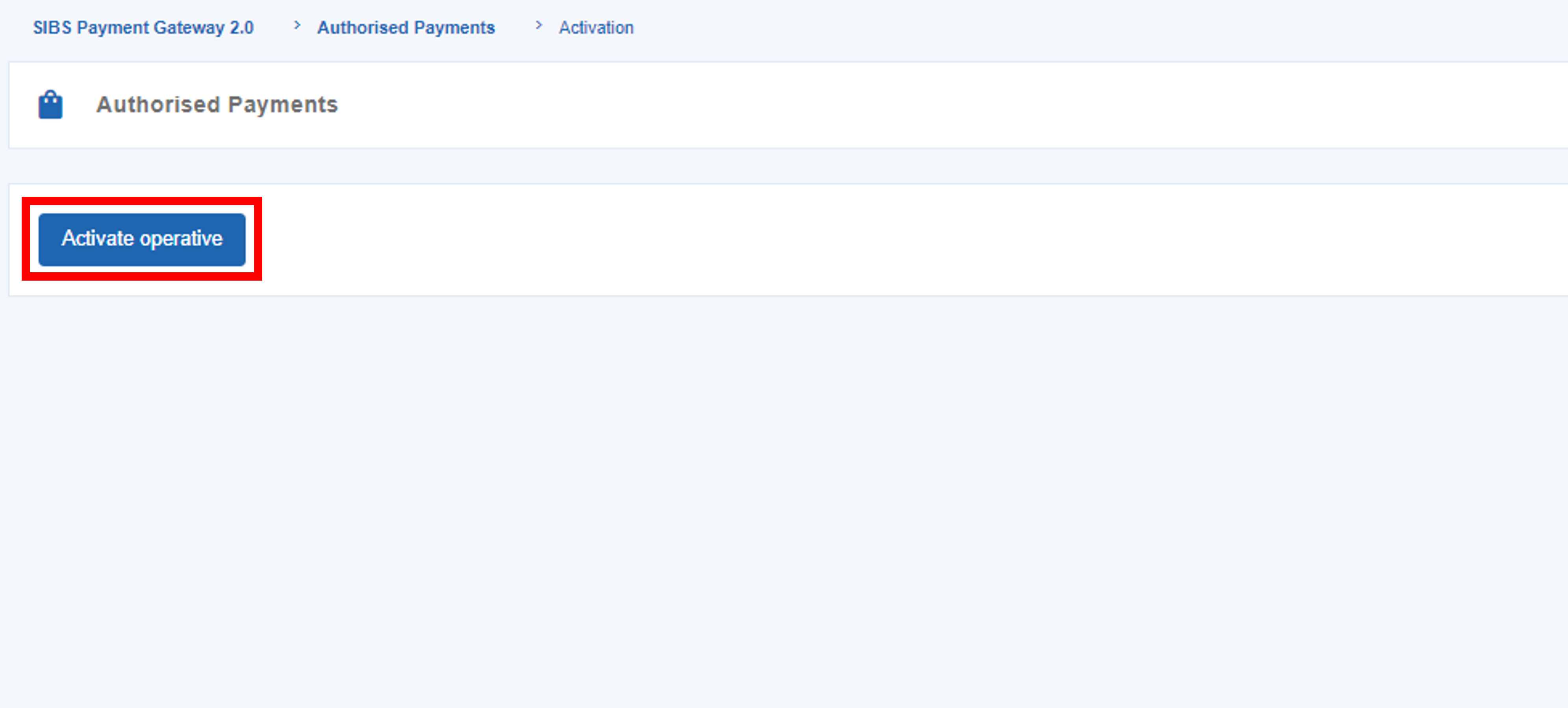
If your merchant account does not have Authorised Payments activated yet, the screen will display an “Activate operative” button.
Click on the button in order to activate Authorised Payments.
This activation can only be performed if you have an Owner or Administrator profile role on SIBS Backoffice.
Configure
In order to configure Authorised Payments, go to “Configuration” > “Authorised Payments”.
There will be two distinct tabs in the page, that correspond to the two Authorised Payment types:
One Click: For one-off payments, in which the customer can perform purchases without the need for validation;
Subscription: Automatic payments for subscriptions (e.g. monthly, yearly subscriptions, etc.) without the need for customer authentication for each billing date payment.
For each type of Authorised Payment, you should define your company’s name, logo and a link to the Terms and Conditions, that will be displayed in MB WAY.
You will also be able to insert amount limits for the transactions of a given Authorised Payment.
Integer values must be used when setting monthly limits for creating authorised payments, with the “Minimum value” of 1€ and the “Maximum value” of 9999€.
The customer, by using MB WAY, can set their limit value for the Authorised Payment related to a specific merchant.
The change in the amount limits for a given Authorised Payment will only have an impact on tokens created after the new rule and will have no impact on the pool of tokens created until then.
Setup
In order to setup Authorised Payments in payments, you will need to configure your payment solutions.
To know more about setup Authorised Payments in payment solutions, click here.
Once every step of the setup is performed, all the purchases using Authorised Payments will be recorded on SIBS Backoffice.
Check and filter
In order to see the list of the Authorised Payments performed, go to “SIBS Payment Gateway 2.0” > “Authorised Payments”.
In this page, you can use the search bar to define “Quick filters” and easily search payments.
The available filters are the following:
Field
Description
ID
ID number of the Authorised Payment
Name
Name of the card holder
Monthly limit value
Monthly limit value defined for the Authorised Payment
Authorised payment type
Type of Authorised Payment (if One-Click or Subscription)
Expiration date
Expiration date of the Authorised Payment
Phone number
Customer phone number used in the Authorised Payment
Creation date
Creation date of Authorised Payment
Status
Status of the Authorised Payment (if “Active”, “Suspended, “Cancelled” or “Expired”)
Original transaction ID
Transaction ID of the Authorised Payment
Check specific transactions
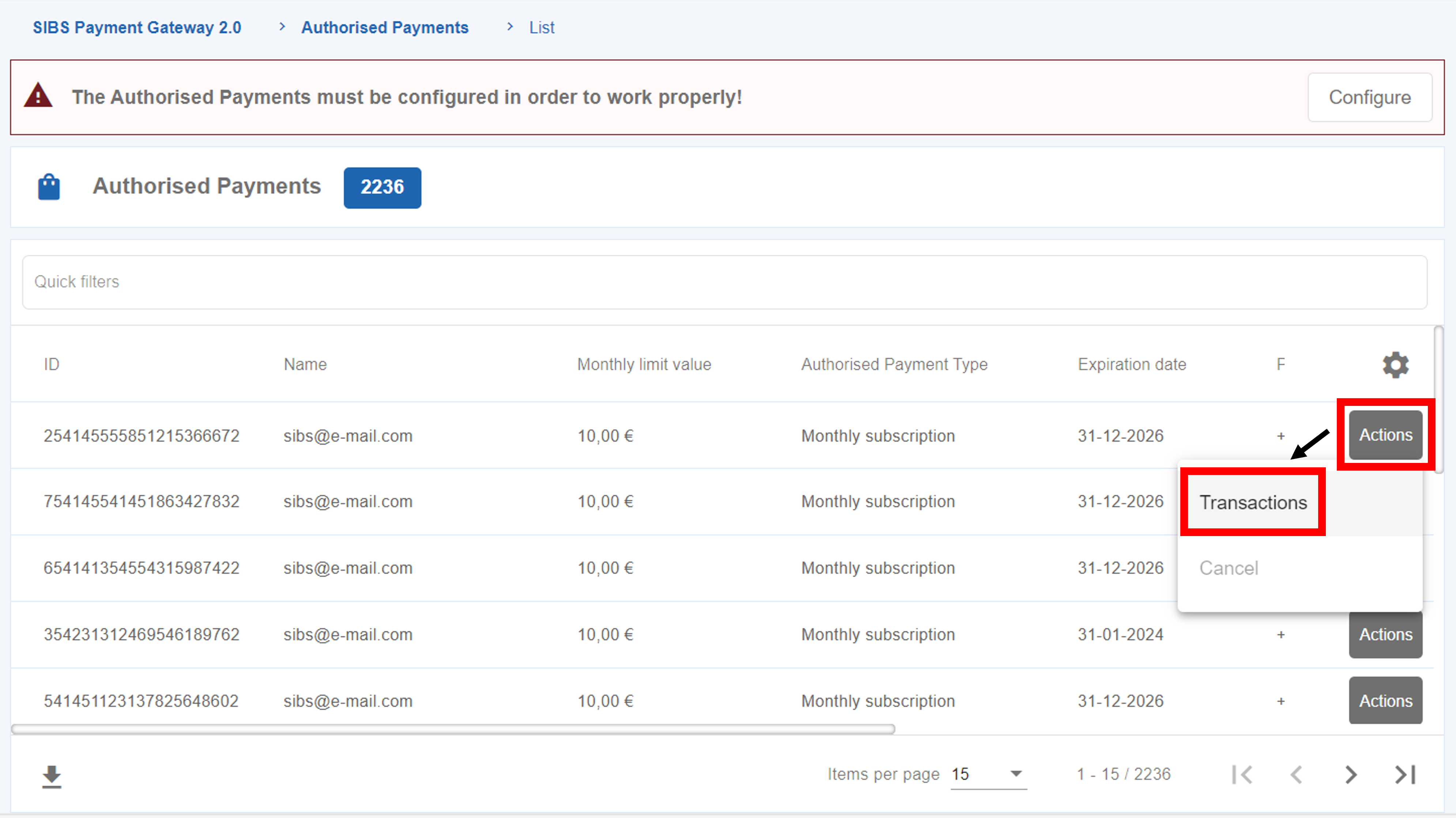
To check the transactions associated to a given Authorised Payment, click on the “Actions” button and then on the “Transactions” option, as shown below.
SIBS Backoffice will redirect to the “Payment Operations” page, in which all the transactions for that specific Authorised Payment will be listed.
The “SIBS Payment Gateway 2.0” menu has a submenu, “Payment Entities”, which allows to insert the Entities that will receive the Transactions.
These Payment Entities must be inserted in SIBS Backoffice in order to perform the proper integration of MULTIBANCO references from vTerminal (SIBS Gateway 2.0).
Insert Payment Entities
In order to insert Payment Entities in SIBS Backoffice, go to the “Credentials” menu and click on “Add Credential”.
In the Payment Entities page, you will have a form named “Insert your Payment Entity”.
Fill the form, with the proper “Payment Entity” and “Description” and click “Confirm”.
The inserted Payment Entity will then be displayed on the page list.
In the “SIBS Payment Gateway 2.0” > “APP SPG 2.0” you are able to generate and get the Client ID and Client Secret credentials needed in order to perform the SIBS Payment Gateway 2.0 integration.
In order to generate the credentials, click on “Get”. You will be prompted to insert your password in order to confirm the credentials generation.
If you already have a Client ID and Client Secret generated, the page will display a list with those credentials.
In the “SIBS Payment Gateway 2.0” -> “Token Configuration” you can choose if you want Tokenisation at a merchant level or at a merchant and acceptor level.
SIBS Backoffice will provide a token management according to the selected setting.
This website uses cookies so that we can provide you with the best user experience possible. Cookie information is stored in your browser and performs functions such as recognising you when you return to our website and helping our team to understand which sections of the website you find most interesting and useful.
Strictly Necessary Cookies
Strictly Necessary Cookie should be enabled at all times so that we can save your preferences for cookie settings.
If you disable this cookie, we will not be able to save your preferences. This means that every time you visit this website you will need to enable or disable cookies again.
This site is registered on wpml.org as a development site. Switch to a production site key to remove this banner.