Tokens management
In the “SIBS Payment Gateway 2.0” > “Token Management”, you can consult the list of your stored card tokens.
You are also able to exclude a token, by clicking on the following icon  of a specific token.

In the “SIBS Payment Gateway 2.0” > “Token Management”, you can consult the list of your stored card tokens.
You are also able to exclude a token, by clicking on the following icon of a specific token.
A webhook is a service that enables you to receive notifications of transactions via e-mail or URL.
In order to create a new webhook, go to “SIBS Payment Gateway 2.0” > “Webhooks” and click on the “Add new webhook” button.
Once you are presented with the webhook creation page, pick if you want to configure an URL or e-mail webhook.
Depending on the type of webhook you will need to input the URL or e-mail that will be used to receive the notifications.
In URL type webhooks, a secret key is provided in order to keep your webhooks secure.
If you want to learn more about how to integrate URL notifications click here.
The sub-menu “Credentials” will be available automatically after the merchant adheres to SIBS Payment Gateway.
The page will show a list of all your credentials, with information such as the associated profile and terminal, expiration date and status of the credential.
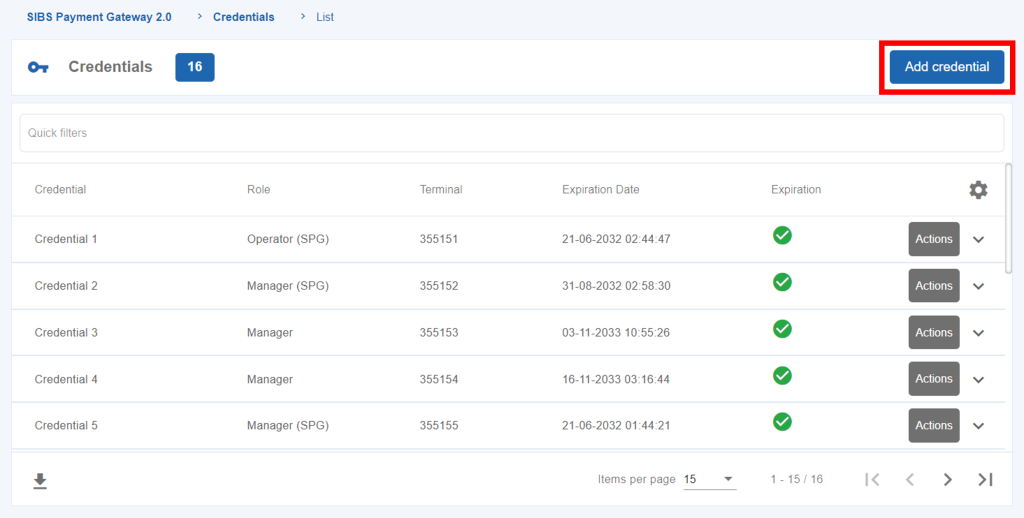
In order to add a new credential, go to “SIBS Payment Gateway 2.0” > “Credentials”.
Click on “Add credential”, as seen in the picture bellow.
A page with a form will open and you will need to fill the credential name and the role plus the terminal associated to the credential.
Click on “Confirm” to create a new credential. You will be prompted to input your SIBS Backoffice password in order to finish the credential creation.
SIBS Backoffice will display the generated token for the created credential. This information can also be checked in the credentials list page.
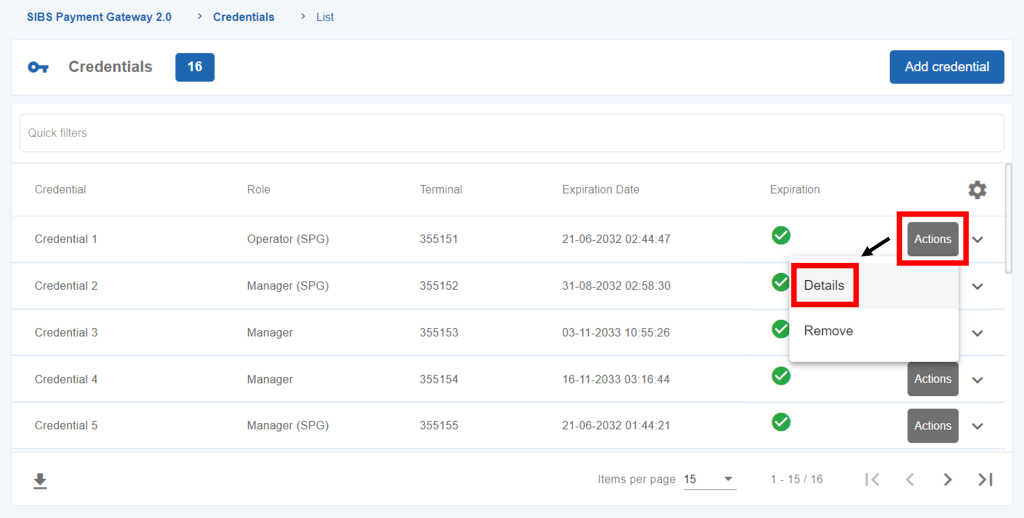
To check details of a credential, go to “SIBS Payment Gateway 2.0” > “Credentials”.
Click on the “Actions” button of a credential and then on “Details”, as seen in the picture bellow.
In order to check the credential details, you will have to input your SIBS Backoffice password.
After password confirmation, a page with the details about the credential will be shown.
To delete a credential, go to “SIBS Payment Gateway 2.0” > “Credentials”.
Click on the “Actions” button of the credential you want to delete and then click on “Remove”.
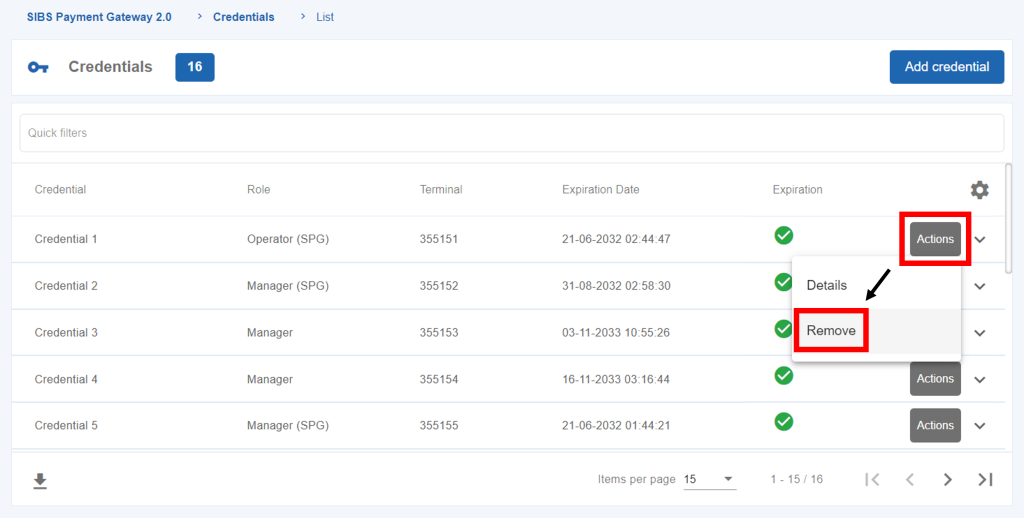
After you click on the “Remove” button, SIBS Backoffice will prompt you to input your password. Once the password is confirmed, the credential will be removed.
vTerminal is a virtual terminal that allows you to accept financial transactions via MB WAY and MULTIBANCO reference.
To use vTerminal, you will need to have a SIBS Payment Gateway offer under contract with your financial institution, with at least one terminal associated.
To start accepting payments via vTerminal, you will need to create a credential in SIBS Backoffice.
In order to create a credential, go to the “Credentials” menu and click on “Add Credential”.
The form to add a credential will have the following fields:
Go to “SIBS Payment Gateway 2.0” > “vTerminal”.
If you have only one terminal, you will be redirected automatically to the “vTerminal” payment screen.
In case you have two or more terminals setup, a screen with a list of terminals will be displayed. You can choose the terminal you want to use by clicking on the following icon. 
| Field | Description | Required |
|---|---|---|
| Payment Type | Payment type you want to use: – Authorization: via MB WAY; – Purchase: via MB WAY | YES |
| Amount | Total amount of the purchase. Minimum value of 0,01€. | YES |
| Currency | Euro is the predefined, non-editable currency. | YES |
| Entity | Warning: In order to generate a MB WAY operation, leave the field blank. | – |
| Merchant Operation ID | Internal merchant code ID. | YES |
| Merchant User ID | Client’s identificator number. To fill if the client wants to have an identification number associated to the operation. | NO |
| MO/TO | This field refers to the “Mail Order/Telephone Order” action. Field intended when you perform distance sales (e.g. purchase orders received by telephone). Note: This option should only be used if the merchant has an authorization. If you do not have an authorization, the central system will refuse your orders. | NO |
| Name | Client’s name. | NO |
| Surname | Client’s surname. | NO |
| Date of birth | Client’s date of birth. | NO |
| Client’s e-mail. | NO | |
| Country Code | Client’s country code. | NO |
| Mobile | Client’s mobile number. | NO |
| Street (Billing Address) | Billing street address. | NO |
| Postal code (Billing Address) | Billing postal code. | NO |
| Location (Billing Address) | Billing location. | NO |
| Country (Billing Address) | Billing country. | NO |
| Ship to a different address (Billing Address) | To be selected if the client’s shipping address is different from the billing address. | NO |
| Street (Shipping Address) | Shipping street address. | YES (if “Shipping to a different address” is selected) |
| Postal code (Shipping Address) | Shipping postal code. | YES (if “Shipping to a different address” is selected) |
| Location (Shipping Address) | Shipping location. | YES (if “Shipping to a different address” is selected) |
| Country (Shipping Address) | Shipping country. | YES (if “Shipping to a different address” is selected) |
| Field | Description | Required |
|---|---|---|
| Payment Type | Payment type you want to use: – Authorization: via MULTIBANCO reference. | YES |
| Amount | Total amount of the purchase. Minimum value of 0,01€. | YES |
| Currency | Euro is the predefined, non-editable currency. | YES |
| Entity | Warning: In order to generate a MB WAY operation, leave the field blank. | – |
| Merchant Operation ID | Internal merchant code ID. | YES |
| Merchant User ID | Client’s identificator number. To fill if the client wants to have an identification number associated to the operation. | NO |
| MO/TO | This field refers to the “Mail Order/Telephone Order” action. Field intended when you perform distance sales (e.g. purchase orders received by telephone). This option should only be used if the merchant has an authorization. If you do not have an authorization, the central system will refuse your orders. | NO |
| Minimum amount | Sets a minimum amount to be entered by the client when using the MULTIBANCO reference. | NO |
| Start Date | Sets the start date of the MULTIBANCO reference. | YES |
| Start Hour | Sets the start hour of the MULTIBANCO reference. | YES |
| End Date | Sets the end date of the MULTIBANCO reference. | YES |
| End Hour | Sets the end hour of the MULTIBANCO reference. | YES |
| Name | Client’s name. | NO |
| Surname | Client’s surname. | NO |
| Date of birth | Client’s date of birth. | NO |
| Client’s e-mail. | NO | |
| Country Code | Client’s country code. | NO |
| Mobile | Client’s mobile number. | NO |
| Send Reference | Select “SMS” or “Email” fields if you want to send the MULTIBANCO references to the client. | NO |
| Street (Billing Address) | Billing street address. | NO |
| Postal code (Billing Address) | Billing postal code. | NO |
| Location (Billing Address) | Billing location. | NO |
| Country (Billing Address) | Billing country. | NO |
| Ship to a different address (Billing Address) | To be selected if the client’s shipping address is different from the billing address. | NO |
| Street (Shipping Address) | Shipping street address. | YES (if “Shipping to a different address” is selected) |
| Postal code (Shipping Address) | Shipping postal code. | YES (if “Shipping to a different address” is selected) |
| Location (Shipping Address) | Shipping location. | YES (if “Shipping to a different address” is selected) |
| Country (Shipping Address) | Shipping country. | YES (if “Shipping to a different address” is selected) |
After the form is submitted, the vTerminal will display a screen in which you will be able to enter the client’s phone number and click “Confirm”.
The webpage will redirect you to a “Status” page, in which all operation details will be displayed.
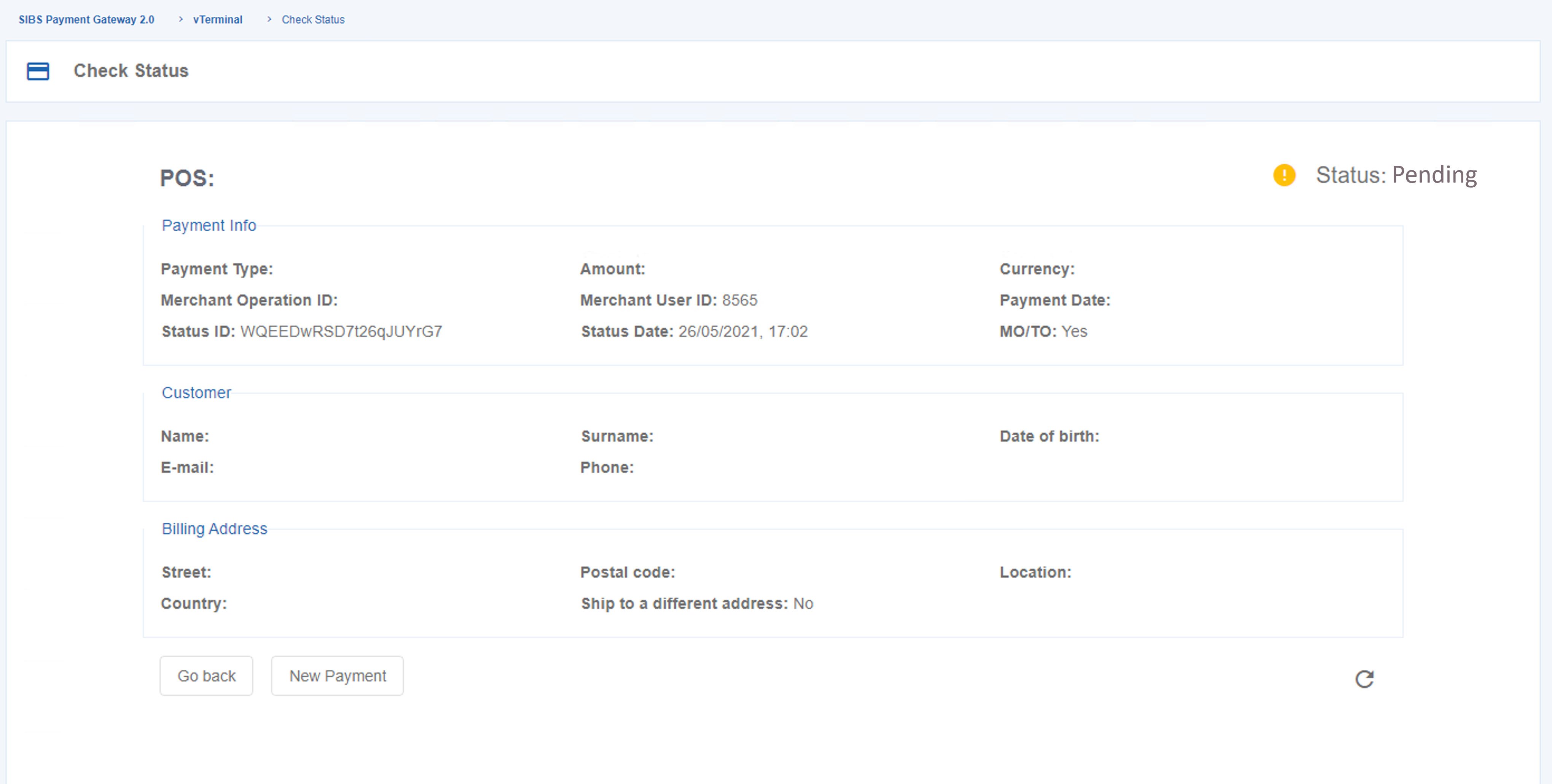
Once the client performs the payment, the webpage will display a “Status: SUCCESS”.
QR Code Express enables your customers to make purchases by scanning static QR Codes using MB WAY.
This solution allows you to make payment codes available on traditional media (e.g. flyers, television ads, billboards), which customers can use MB WAY to make purchases.
A QR Code Express can be scanned by multiple users and several times by the same user, making the distribution of the codes much easier.
This type of QR Code also allows you to make purchases of physical or digital goods with the available options of instant or home deliveries.
The management of QR Code Express is done on SIBS Backoffice, in which you can control the life cycle of your QR Codes in an effortless way.
To learn more about QR Code Express click here.
Merchant Initiated Transactions (MIT) are payment transactions initiated by the Merchant, after agreement between merchant and customer.
Unlike customer-initiated transactions, a cardholder authentication is not needed in order to perform a payment.
Merchant Initiated Transactions have two distinct types:
In order to start using MIT in SIBS Backoffice, you will need to have a SIBS Payment Gateway offer with MIT included under the contract with your financial institution.
Make sure you have access to a SIBS Backoffice account. If you haven’t had any onboarding process with SIBS regarding SIBS Backoffice, make sure you follow this link in order to receive credentials to the platform.
After you have all the agreements with your financial institution and access to SIBS Backoffice, the MIT submenu will be available (by clicking in the “SIBS Payment Gateway 2.0” menu > “MIT”). In order to use the MIT functionalities in SIBS Backoffice, you will need to configure the Terms & Conditions of the MIT service, located in the menu “Configuration” > “MIT” .
This link will be made available to the customer on the purchase form and serves the purpose of highlighting specific conditions of MITs to customers. You must set the T&C link according to the “Recurring”, “UCOF” or both MIT types, depending on the operation type you have set up.
In order to check the MIT purchase list, go to the menu “SIBS Payment Gateway 2.0” > “MIT”.
In order to setup a MIT in payments, you will need to configure your payment solutions. If you want to know more about setup MIT in payment solutions, click here.
Once every step of the setup is performed, all the purchases using a MIT will be recorded on SIBS Backoffice.
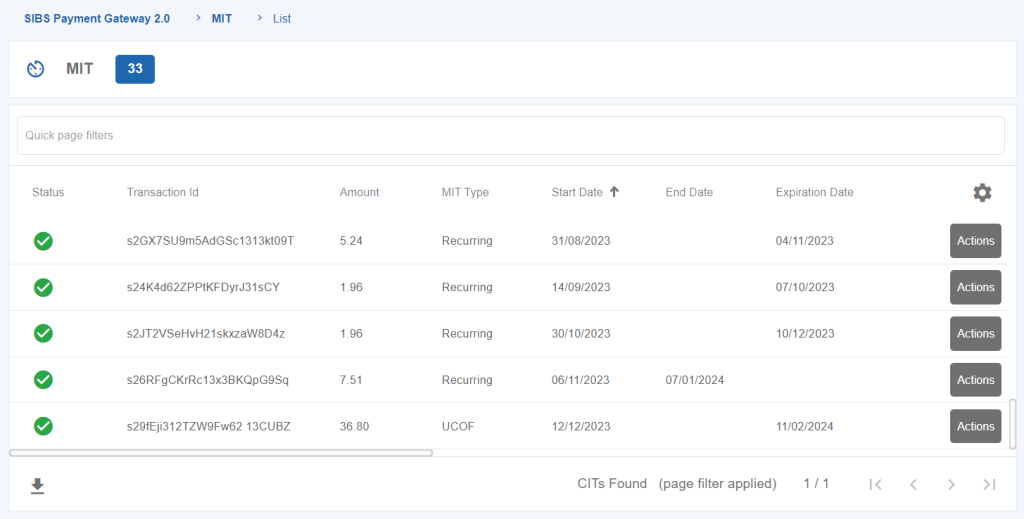
In order to perform a MIT payment (either Recurring Payment or UCOF), make sure you are in the “SIBS Payment Gateway 2.0” > “MIT” subpage.
Check the MIT you want to perform a payment and click on the “Actions” button of the MIT and then on “New Recurring Payment” (if it is a Recurring Payment MIT) or “New UCOF Payment” option (if it is an UCOF Payment).
In order to make a MIT payment (either Recurring Payment or UCOF), click on the on the “Actions” button of the MIT and then on “New Recurring Payment” (if it is a Recurring Payment MIT) or “New UCOF Payment” option (if it is UCOF Payment).
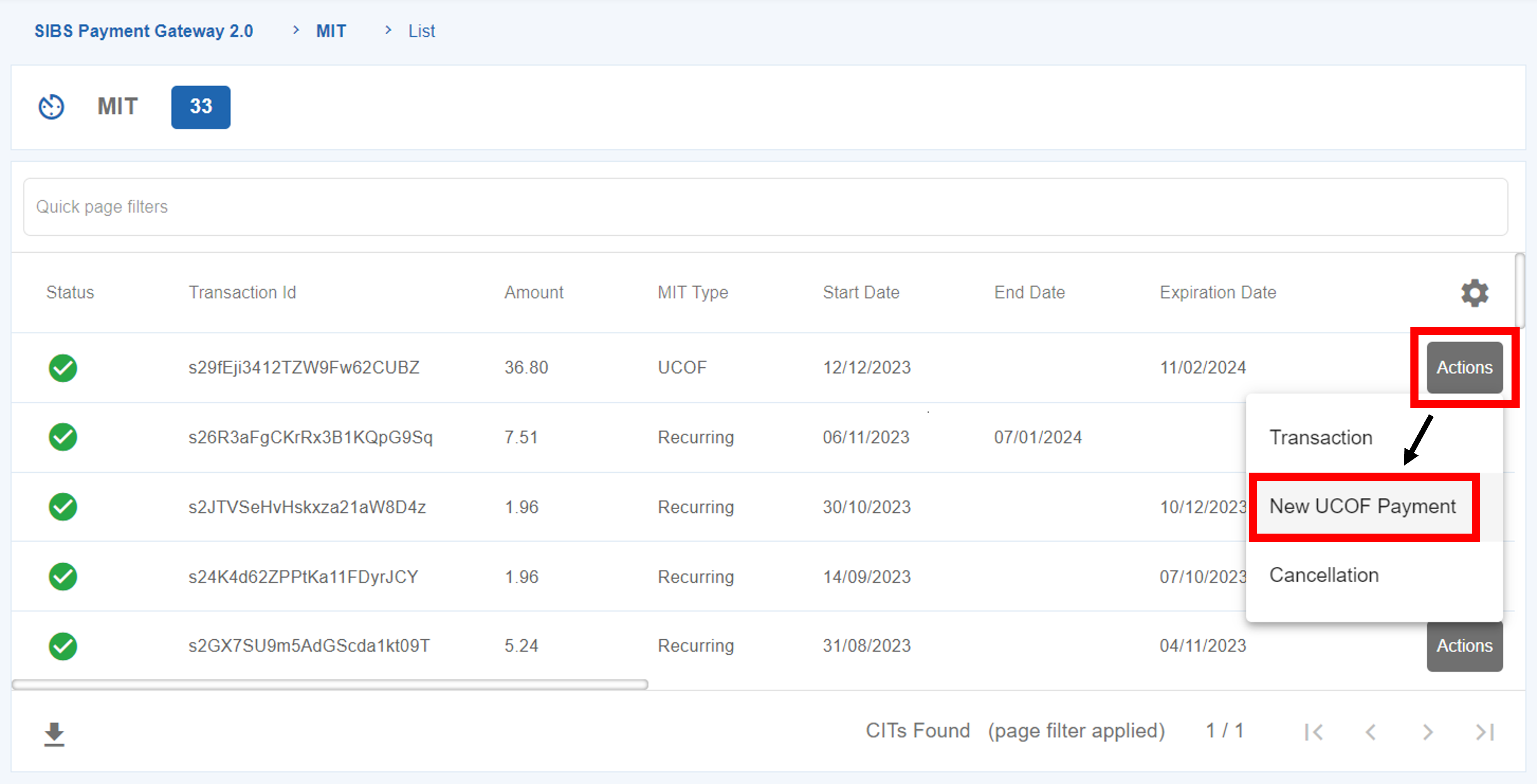
Once in the payment page, you will be able to set the amount of the payment and click on the “Collect Payment” button.
In order to cancel a MIT (either Recurring Payment or UCOF), go to “SIBS Payment Gateway 2.0” > “MIT” subpage.
Search for the MIT you want to cancel and click on the “Actions” button and then “Cancellation”.
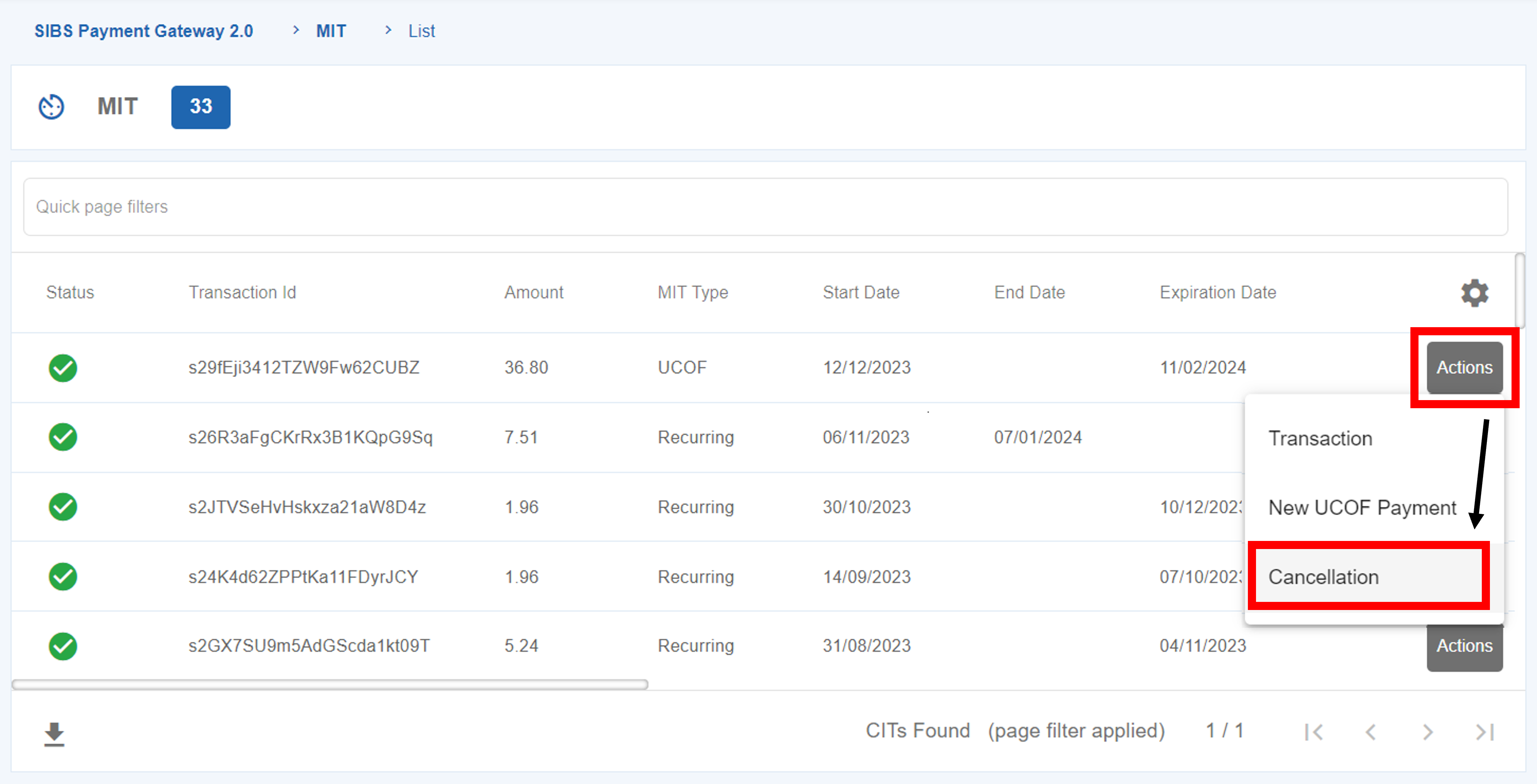
In the next screen you can check the details about the MIT and you will be able to click on the “Cancellation” button.
Learn more
Learn more
Learn more
Learn more
Learn more
Learn more
Learn more
Learn more
Learn more
Learn more
On SIBS Backoffice you have a dedicated menu to change your general settings of your account. Please, click on your profile name and go to “Settings” to enter on the user settings page.
You can change the password of your profile by clicking in your profile name and go to “Settings”.
After filling the “Change password” form and setting a new password, you will be redirected to the login page, in which you will have to enter the newly set password.
In order to change the mobile phone number associated to your SIBS Backoffice account, click on your profile name and go to “Settings”.
In the “Change mobile phone” form you will be able to add a new phone number and then click on “Save” to confirm your mobile phone change.
In order to deactivate your SIBS Backoffice account, you will need to have an “Owner” role on SIBS Backoffice. If such is the case, click on your profile name and go to “Settings”.
On the “Deactivate account” section, click on the “Deactivate” button.
After pressing the button and confirming your action, you will receive an SMS with a confirmation code. In order to complete the account deactivation process, please enter the code received.
If you forgot your SIBS Backoffice password, go to the “Login” webpage and click on “Forgot your Password?”.
You will be redirected to a new screen, in which you must enter your e-mail address and registered mobile phone. After that, you will receive an SMS with the password recover code that must be input on SIBS Backoffice.
Lastly, you will be able to set a new password and log into your account.
You can customize your transaction page list in order to include the fields more suitable for your business needs.
To do this go to the menu “Configuration” > “Transaction List”.
On that page you can organize the order and the fields shown on the list of the Payment Operations page.

After all the changes are made, click on “Save” to confirm your choices.
SIBS Backoffice offers several User levels. Depending on the profile associated to the User Account, the User has access to different features of the Portal.
The Merchant profiles that can be assigned to Users are as follows:
On the table provided below, you can see the features available for each SIBS Backoffice profiles.
|
Owner |
Administrator |
Manager |
Supervisor |
Operator |
Analytics |
QR Code Manager | |
|
Menu/Submenu | |||||||
|
Cockpit |  | | | |  | | |
|
24 hours | | | | | | | |
|
History analysis | | | | | | | |
|
Menu/Submenu | |||||||
|
Payments | | | | | | | |
|
Payment operations* | | | | | | | |
|
Reconciliation operations | | | | | | | |
|
Menu/Submenu | |||||||
|
SIBS Payment Gateway 2.0 | | | | | | | |
|
MIT | | | | | | | |
|
QR Code Express | | | | | | | |
|
vTerminal | | | | | | | |
|
Credentials | | | | | | | |
|
Webhooks | | | | | | | |
|
Tokens management | | | | | | | |
|
App SPG 2.0 | | | | | | | |
|
Payment entities | | | | | | | |
|
Authorized payments | | | | | | | |
|
Menu/Submenu | |||||||
|
SIBS Payment Gateway 1.0 | | | | | | | |
|
Operational data | | | | | | | |
|
Stores | | | | | | | |
|
Terminals | | | | | | | |
|
Other reports | | | | | | | |
|
Menu/Submenu | |||||||
|
Marketplace | | | | | | | |
|
Parameterization | | | | | | | |
|
Submerchant | | | | | | | |
|
Marketplace credentials | | | | | | | |
|
Balance escrow account | | | | | | | |
|
Menu/Submenu | |||||||
|
Configuration | | | | | | | |
|
MIT | | | | | | | |
|
Users | | | | | | | |
|
Transaction list | | | | | | | |
|
Authorized payments | | | | | | | |
|
Menu | |||||||
|
Events and audits | | | | | | | |
|
Omni-channel extract | | | | | | | |
|
Owner |
Administrator |
Manager |
Supervisor |
Operator |
Analytics |
QR Code Manager | |
|
Menu/Submenu | |||||||
|
Cockpit |
n.a. |
n.a. |
n.a. |
n.a. |
n.a. |
n.a. |
n.a. |
|
24 hours |
n.a. |
n.a. |
n.a. |
n.a. |
n.a. |
n.a. |
n.a. |
|
History analysis | | | | | | | |
|
Menu/Submenu | |||||||
|
Payments | | | |
* | | | |
|
Payment operations* | | | | | | | |
|
Reconciliation operations | | | | | | | |
|
Menu/Submenu | |||||||
|
SIBS Payment Gateway 2.0 | | | | | | | |
|
MIT | | | | | | | |
|
QR Code Express | | | | | | | |
|
vTerminal | | | | | | | |
|
Credentials | | | | | | | |
|
Webhooks | | | | | | | |
|
Tokens management | | | | | | | |
|
App SPG 2.0 | | | | | | | |
|
Payment entities | | | | | | | |
|
Authorized payments | | | | | | | |
|
Menu/Submenu | |||||||
|
SIBS Payment Gateway 1.0 | | | | | | | |
|
Operational data | | | | | | | |
|
Stores | | | | | | | |
|
Terminals | | | | | | | |
|
Other reports | | | | | | | |
|
Menu/Submenu | |||||||
|
Marketplace | | | | | | | |
|
Parameterization | | | | | | | |
|
Submerchant | | | | | | | |
|
Marketplace credentials | | | | | | | |
|
Balance escrow account | | | | | | | |
|
Menu/Submenu | |||||||
|
Configuration | | | | | | | |
|
MIT | | | | | | | |
|
Users | | | | | | | |
|
Transaction list | | | | | | | |
|
Authorized payments | | | | | | | |
|
Menu | |||||||
|
Events and audits | | | | | | | |
|
Omni-channel extract | | | | | | | |
In order to check the status of a user account, the information of the “Status” will have the following colors:

SIBS Backoffice grants unlimited number of accounts per merchant.
To register a new user into SIBS Backoffice go to “Configuration” > “Users”. In that page click on the “Add user” button.
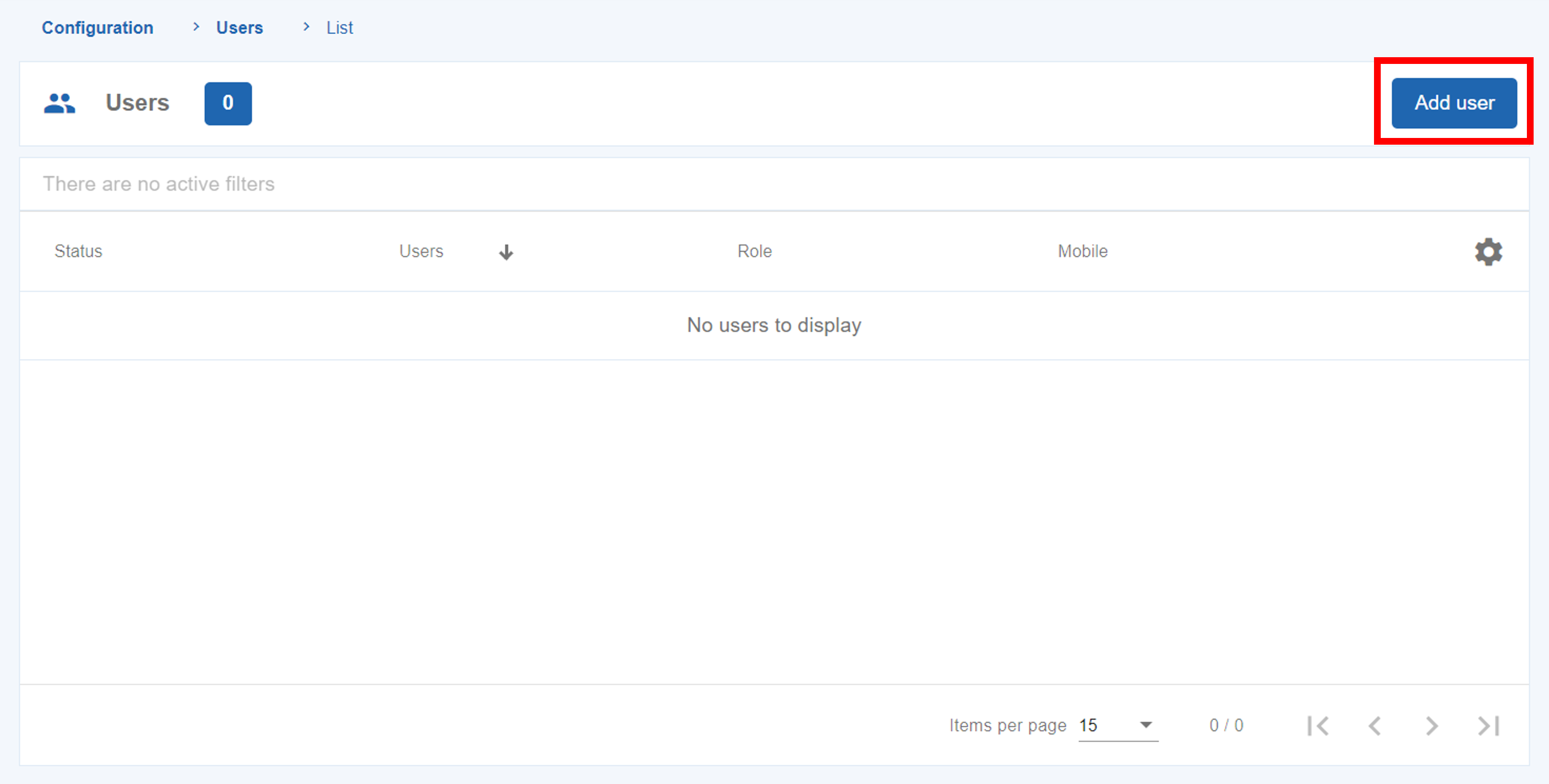
Once all required information is filled in, click on the “Add user” button.
The new user must then follow the account activation steps in order to register his account.
In the “Configurations” > “Users” a user can view a list of accounts registered.
By clicking on “Actions” > “Edit” on a specific user available on the list, you will be able to edit the configurations of that specific user.
After all the changes are made, click on the “Edit” button to save.


